How to Withdraw From RustClash to Steam
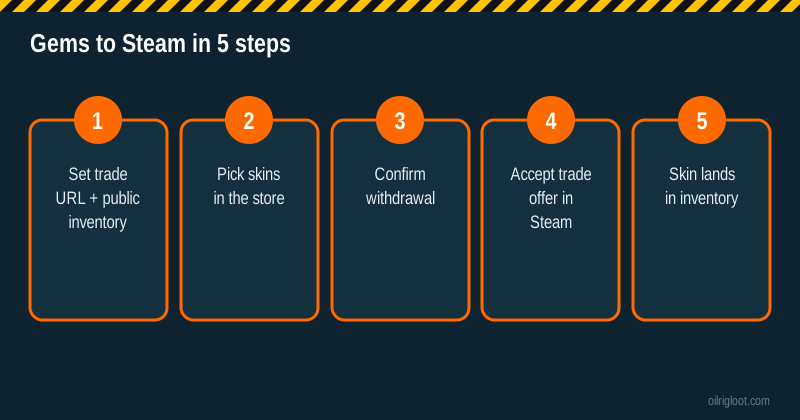
To withdraw from RustClash to Steam, you buy Rust skins from the site's withdrawal store with your gem balance, then accept the trade offer that arrives in Steam. That's the whole idea. Most problems come from the Steam side, not the site: a private inventory, a stale trade URL, no Mobile Authenticator, or a trade hold. Sort those out before you hit withdraw and the process is usually painless.
This guide walks through the setup, the withdrawal itself, what happens with trade holds and how to fix the common "my skin never arrived" problems. We earn a commission if you sign up through our link, so we'll be clear about the downsides too.
Quick answer
| Question | Short answer |
|---|---|
| Where do skin withdrawals happen? | The onsite skin store, paid with gems |
| What do you receive? | A Steam trade offer with the Rust items you picked |
| What do you need? | Steam Mobile Authenticator, public inventory, correct trade URL |
| Other payout route | Crypto (see our crypto withdrawal guide) |
| Reported conditions | Third-party reviews mention a 1x playthrough on deposits before withdrawing |
| Who can use it | 18+ only, not available in ID, MT, MI, NV or WA |
How skin withdrawals on RustClash work
RustClash runs on gems, its on-site currency. When you deposit skins, cards or crypto, you get gems. When you want something back out, you have two choices: crypto, or the skin store. The store is a catalogue of Rust items with gem prices next to them. You pick items up to your balance, confirm, and the site sends the items to your Steam account.
That means a "withdrawal to Steam" is really a purchase from the store followed by a Steam trade. Two things follow from that. First, what you can withdraw depends on what's in stock at that moment. Second, the gem price of an item may not match the Steam Community Market price exactly, so it's worth thinking about which items you actually want rather than grabbing whatever adds up to your balance.
Before you start: get your Steam account ready
Nearly every failed skin withdrawal we read about in player complaints comes down to one of these settings. Do them once and you're set.
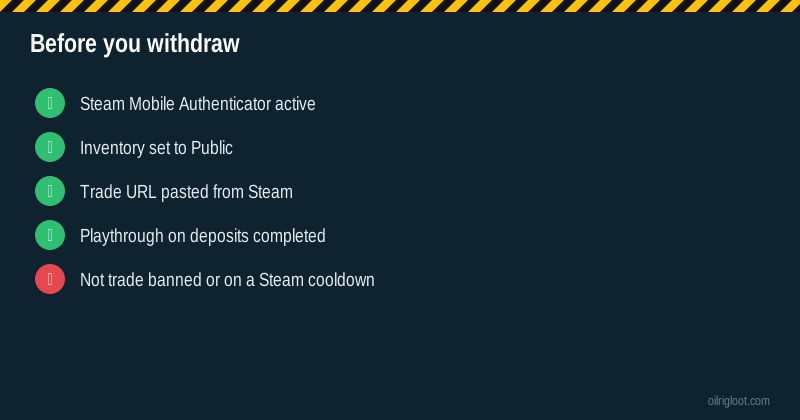
1. Turn on the Steam Mobile Authenticator
Install the Steam app on your phone and enable Steam Guard Mobile Authenticator. Without it, Valve puts holds on trades, and skin sites generally expect it to be active before trading. RustClash's deposit notes say Steam trading needs the authenticator active for a while (third-party guides mention 15 days), so if you just switched it on, expect to wait before trades flow normally. We cover that wait in detail in our Steam trade hold guide.
2. Make your inventory public
In Steam, open your profile, go to Edit Profile, then Privacy Settings, and set Inventory to Public. A private inventory is the single most common reason bots can't send items.
3. Copy your trade URL from Steam
In Steam, go to Inventory, then Trade Offers, then "Who can send me trade offers?". Copy the full trade URL at the bottom and paste it into the trade URL field in your RustClash settings. If you ever click "create new URL" in Steam, the old one stops working and you must paste the new one into RustClash again.
4. Check you have no Steam trade restrictions
Changing your password, resetting Steam Guard, logging in on a new device or a recent account recovery can trigger temporary trade cooldowns on Steam. A trade ban or community ban stops trades entirely. If any of these apply, the site can't fix it; you'll need to wait it out on the Steam side.
Step-by-step: withdrawing skins to Steam
- Log in to RustClash and open the withdraw or store section from the menu.
- Choose the skin store rather than crypto.
- Filter or search for the Rust items you want. Sorting by price helps you get close to your balance.
- Add items to your selection until you're at or just under your gem balance.
- Confirm the withdrawal. The site queues a trade from its trading bot to your trade URL.
- Open the Steam app and look for the incoming trade offer. Check the items listed match what you picked.
- Accept and confirm the trade in the Steam Mobile Authenticator.
- Check your inventory. The skin should appear, possibly with a Steam trade protection or tradable-after date depending on Valve's current rules.
How long does a Steam withdrawal take?
With a properly set-up account, skin trades are usually quick: the trade offer tends to appear within minutes. Delays usually come from the item being reserved by another buyer, the bot queue being busy, or your account being in a Steam hold. If you're after the general picture of payout speed across all methods, our withdrawal time guide covers it.
| Situation | What usually happens |
|---|---|
| Everything set up, item in stock | Trade offer typically within minutes |
| Authenticator recently enabled | Trades may be held until Steam's waiting period ends |
| Private inventory or wrong trade URL | Trade fails or never arrives; fix and retry |
| Item sold out while you checked out | Withdrawal cancelled, gems returned to balance |
| Steam cooldown after a password change | Trades blocked until the cooldown ends |
| Deposit playthrough not met | Withdraw button blocked until requirement is met |
Picking the right skins to withdraw
Because you're buying from a store, a little thought pays off.
- Pick items you'd actually use or keep. If you play Rust, withdrawing a skin for a weapon or base item you use every wipe makes more sense than a random item you'll try to flip.
- Compare with the Steam Market. If you plan to sell, look up the item's current Steam Market price and recent sales volume. Low-volume items can be hard to sell at the price you expect, and Steam takes its own fee when you sell on the Market.
- Avoid splitting into lots of tiny items unless you need to. More items means more chances of one being out of stock or failing.
- Watch for duplicates of rare items. Prices on rare or new items can swing fast after a Rust update or a new store release.
Common problems and fixes
"I withdrew but no trade offer arrived"
Check your trade URL is current, your inventory is public, and you haven't declined or let the offer expire. Then look at the withdrawal history on RustClash for a status. If it says sent, open Steam's trade offers page directly in a browser, because the mobile app sometimes lags.
"The trade was cancelled"
Trades can be cancelled if you don't accept in time, if Steam reports a hold, or if the bot's item became unavailable. In most cases the gems go back to your balance so you can try again. If they don't appear within a reasonable time, contact support with the withdrawal reference.
"It says I need to meet a playthrough"
Third-party reviews report that RustClash asks for 1x playthrough on deposits before you can withdraw. That's an anti-money-laundering measure common on skin sites, not a bonus wagering requirement. Play through the deposited amount and the button unlocks.
"I'm asked for ID"
If you deposited by card and want crypto out, RustClash may ask for KYC. It can also ask at higher levels or for certain free rewards. Our KYC guide explains what to expect and how long it tends to take.
"My skin arrived but I can't trade it on"
Valve can attach a trade protection or cooldown period to items you receive in trades. During that period, the item stays in your inventory but can't be traded or sold. This is a Steam rule and applies on every skin site, not just RustClash.
Skins vs crypto: which withdrawal should you use?
| Skin store to Steam | Crypto | |
|---|---|---|
| What you get | Rust items in your Steam inventory | Coins sent to your wallet |
| Best for | Players who want skins to use in Rust | Players who want cash value |
| Steam setup needed | Yes: authenticator, public inventory, trade URL | No |
| Possible extras | Steam holds or protection periods | Third parties report a 2% to 5% fee |
| ID checks | Less common | May be needed, especially after card deposits |
If you want to turn a balance into money, crypto is usually the more direct route. Withdrawing skins and selling them on the Steam Market only gives you Steam Wallet funds, which you can't cash out to a bank.
Safety tips for Steam trades
Scammers love skin players. A few rules keep your inventory safe:
- Only accept trade offers you started. If an offer arrives that you didn't trigger from your RustClash withdrawal, decline it.
- Check the items in the offer match exactly what you picked before you confirm in the authenticator.
- Never share your Steam login or authenticator codes with anyone claiming to be RustClash support.
- Beware fake "API key" scams. If someone asks you to log in to a site that then requests your Steam Web API key, stop. That key can let scammers intercept trades.
- Use the official site and bookmark it, since lookalike domains are common in skin gambling.
Is withdrawing to Steam allowed by Valve?
Valve's Steam Subscriber Agreement bars using Steam items for gambling, and Valve has acted against skin-gambling sites in the past. Receiving items in a normal trade isn't unusual on its own, but you should know the risk sits on the skin gambling side of things. Keep your account in good standing and don't do anything that breaks Steam's rules.
Rules, age and where it's available
RustClash is 18+ (or the age of majority where you live). Its US terms run a sweepstakes model and exclude Idaho, Montana, Michigan, Nevada and Washington, and RustClash holds no gambling licence. Accounts from restricted places can be closed, so don't try to get around location rules. Skin gambling is real-money gambling, the house has an edge on every game, and it isn't a way to earn money. If it stops being fun, our responsible gambling page lists free help, including 1-800-GAMBLER in the US.
Our honest take
Withdrawing skins from RustClash to Steam is straightforward once your Steam account is set up properly. The site does the store and bot side; your job is the authenticator, a public inventory and a current trade URL. If you'd rather have money than items, take crypto instead. And if you haven't opened an account yet, joining through our invite gets you the 3 free welcome cases and a 5% boost on your next deposit, with no code to type.